> For the complete documentation index, see [llms.txt](https://docs.akto.io/llms.txt). Markdown versions of documentation pages are available by appending `.md` to page URLs; this page is available as [Markdown](https://docs.akto.io/dast/view-dast-scans.md).
# View DAST Scans
The DAST Scans section helps you review how Akto’s crawler explored your application. Here, you can track every scan you initiated, understand how far the crawler reached, and inspect the pages discovered during exploration.
## **Navigate to DAST Scans**
To view your DAST scans:
{% stepper %}
{% step %}
Open the **top-left product selector** in your Akto account.
{% endstep %}
{% step %}
Select **DAST**.
{% endstep %}
{% step %}
In the left sidebar, go to **DAST Discovery → DAST Scans**.
{% endstep %}
{% endstepper %}
## **Understanding Scans List**
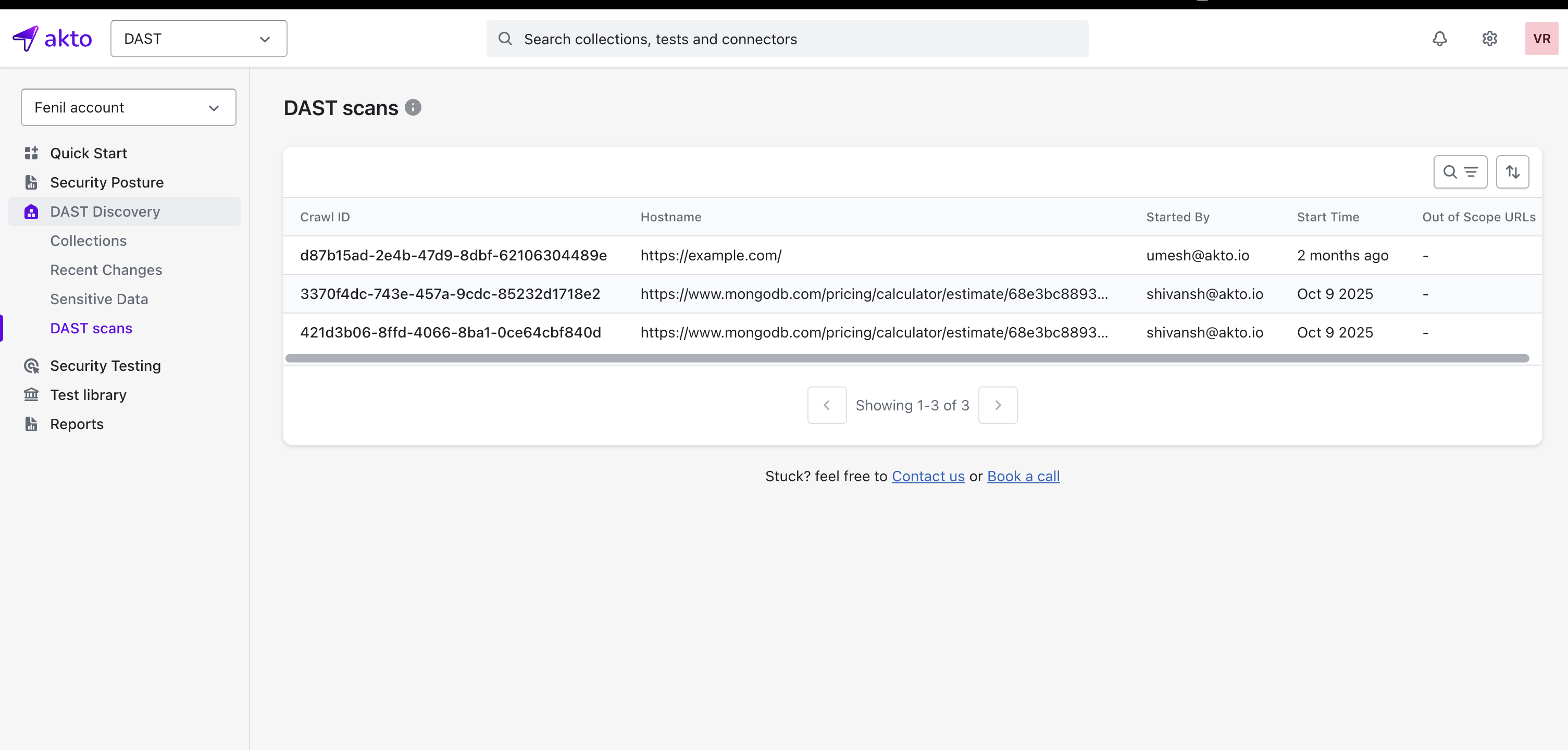
On this page, you see all your previously executed scans, each with essential information to help you track progress and actions:
* **Crawl ID** — A unique identifier for your scan.
* **Hostname** — The domain where the crawl took place.
* **Started By** — The user who launched the scan.
* **Start Time** — When the scan began.
* **Out-of-Scope URLs** — Pages intentionally excluded based on the scope you defined.
{% hint style="info" %}
### **Using Filters and Search**
You can refine the scans list using:
* Hostname filter
* Crawl ID filter
* Started By filter
* Search bar for direct lookup
Filters and search options allow quick access to specific scans without navigating through long lists.
{% endhint %}
## **View Detailed Information**
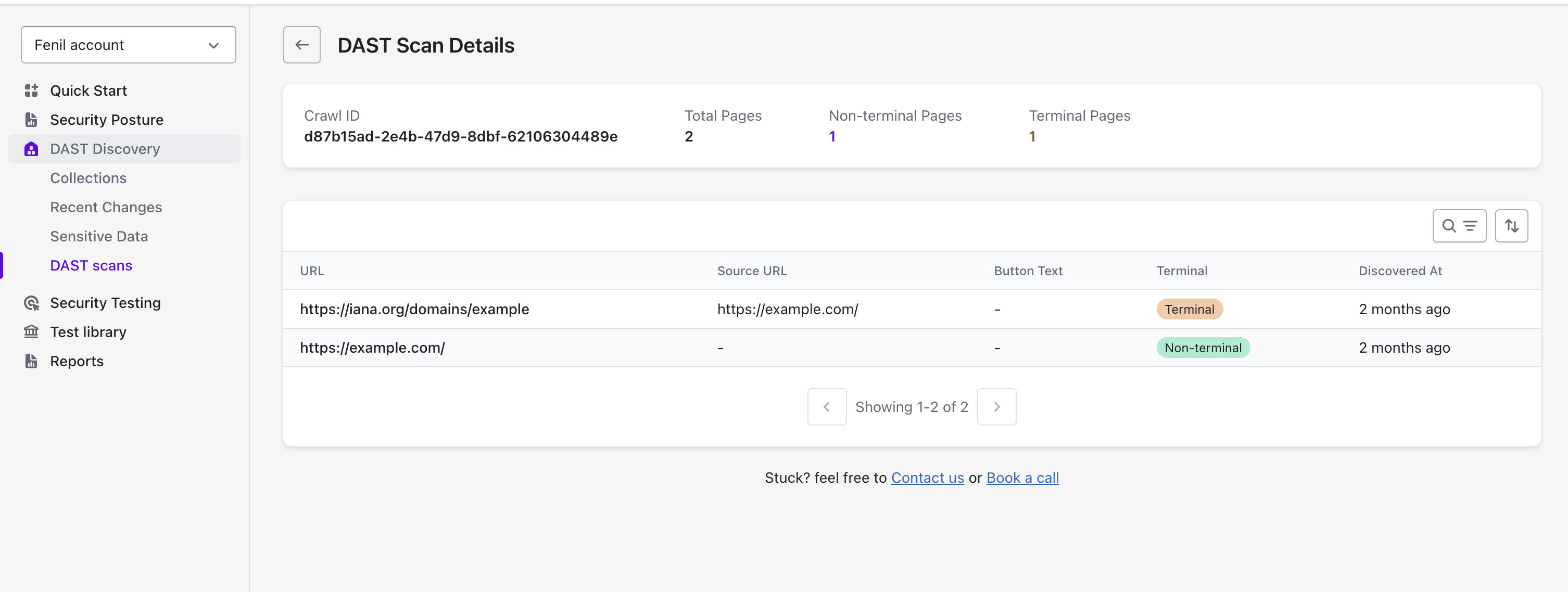
Select any scan to open its detailed view. You will find a complete breakdown of how the crawler moved through your application:
### **Scan Summary**
* **Crawl ID**
* **Total Pages Discovered**
* **Number of Non-Terminal Pages**
* **Number of Terminal Pages**
{% hint style="info" %}
**Terminal pages** represent endpoints where the crawler did not progress further.
**Non-terminal pages** represent endpoints from which the crawler continued navigating.
{% endhint %}
### **Review All Discovered URLs**
Inside the scan details, you see the full list of URLs the crawler identified to get complete visibility into the crawl path. Each row shows:
* **URL** — The page discovered.
* **Source URL** — The page from which the crawler reached it.
* **Button Text** — The clickable element that led to discovery, if applicable.
* **Page Type** — Terminal or non-terminal.
* **Discovered At** — Relative timestamp such as *2 months ago* or *1 day ago*.
## **What Comes Next**
Once the crawl completes and you confirm that the discovered URLs reflect your application structure accurately, you can move forward to running a security test.
To learn how to **trigger security tests using the crawled API inventory**, continue to:
* [**Run Tests**](/api-security-testing/how-to/run-test.md)