> For the complete documentation index, see [llms.txt](https://docs.akto.io/llms.txt). Markdown versions of documentation pages are available by appending `.md` to page URLs; this page is available as [Markdown](https://docs.akto.io/account-management/sso/azuread-saml.md).
# Azure AD SAML
Learn how to enable Single-Sign-On(SSO) through Azure AD using SAML configuration.
If you have Azure AD configured, you can enable SSO on Akto. and you should be an Admin on Akto dashboard.
1. [Ensure that all pre-requisites are met](#pre-requisites)
2. [Create new Oauth application](#create-new-application)
3. [Assign users and groups to your Oauth application](#assign-users-and-groups)
4. [Set up SAML settings for Oauth application](#set-up-saml-settings)
5. [Test your integration](#import-azure-federation-metadata-into-akto-dashboard)
Follow these steps to configure SAML SSO using Azure Active Directory.
## Pre-requisites
To enable users to access Akto using Azure Active Directory Single Sign-On (SSO), the following prerequisites must be met:
1. One of the following roles on Azure AD: **Global Administrator, Privileged Role Administrator, Cloud Application Administrator, or Application Administrator**.
2. You should have **ADMIN** role in Akto dashboard.
3. **Assigned to the Application:** Users must be assigned to the 'Akto' application within the Azure AD.
4. **User Profile Attributes:** Users should have the following attributes defined on their profile on Azure AD:
* First Name
* Last Name
* User Principal Name
* Email
## Create new application.
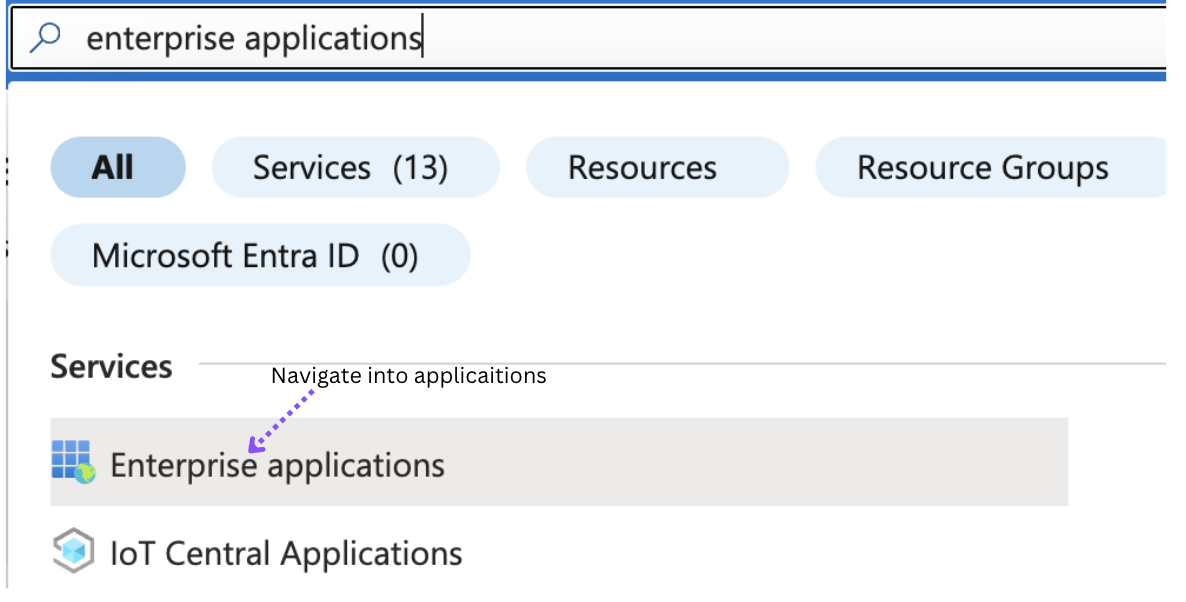
1. Navigate to `Enterprise applications`.
\\
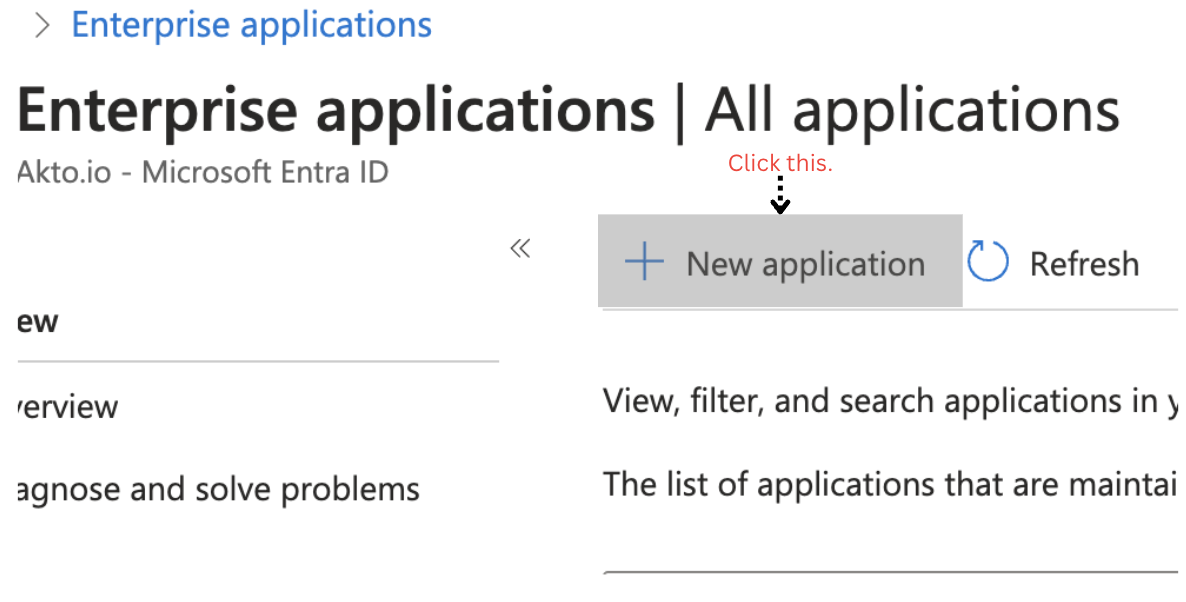
2. Click on the `+ New application` button.
\
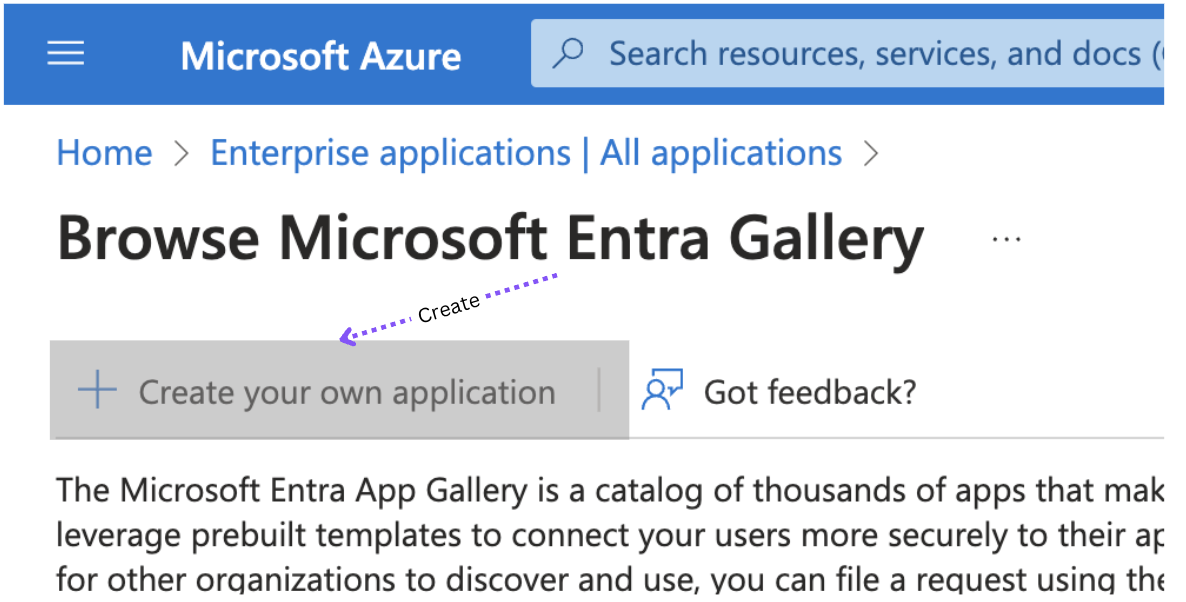
3\. Click on \`+Create your own Application\`.
\
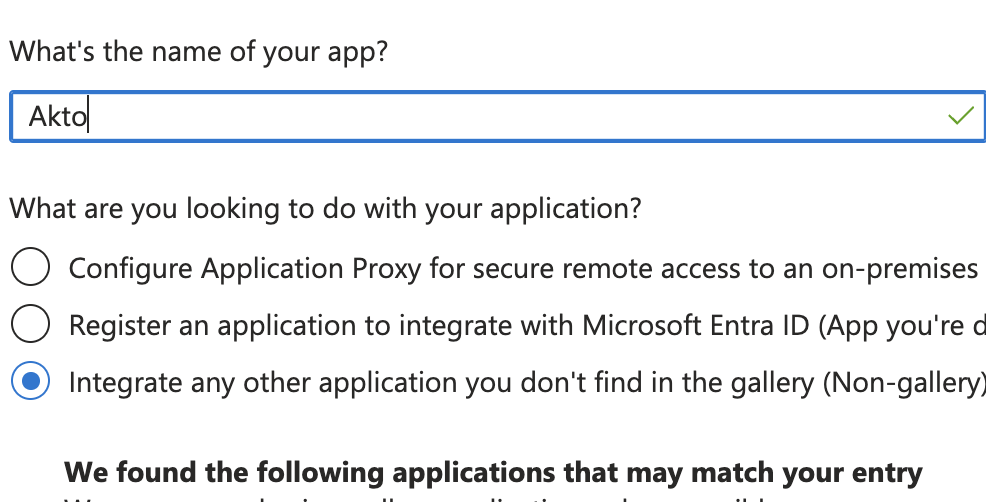
4\. Mention \`Akto\` as the name of your app.
\
5\. Choose the \`Integrate any other application you don't find in the gallery (Non-gallery)\` option and then click on \`Create\`.
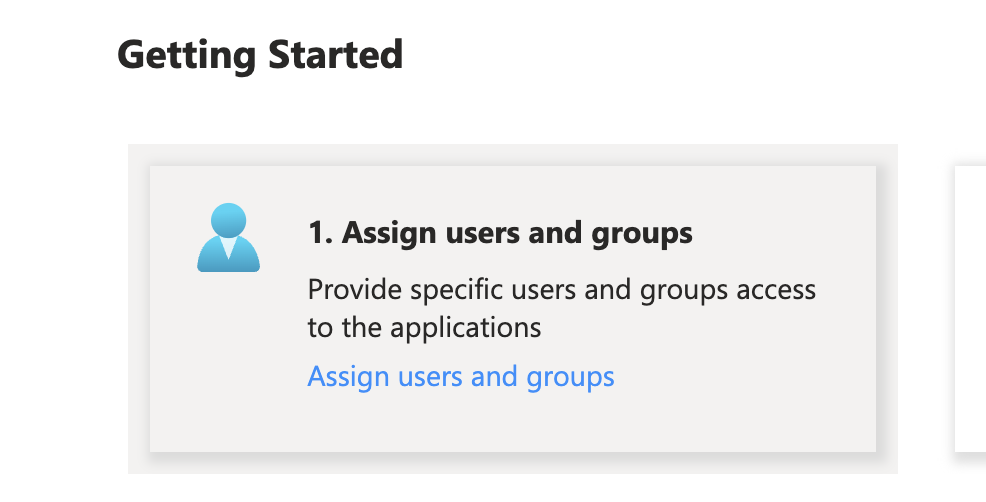
## Assign users and groups
\\
## Set up SAML settings
In the Azure Active Directory admin center, select the 'Akto' Enterprise application. Set up single sign on for the 'Akto' application, selecting `SAML` as the sign-on method. Use the following SAML settings. Here `{ hostname }` is the value of your domain hostname where you are hosting the Akto application.
**NOTE:** `Sign on URL` must be in `https:` format and not `http` for configuring SAML.
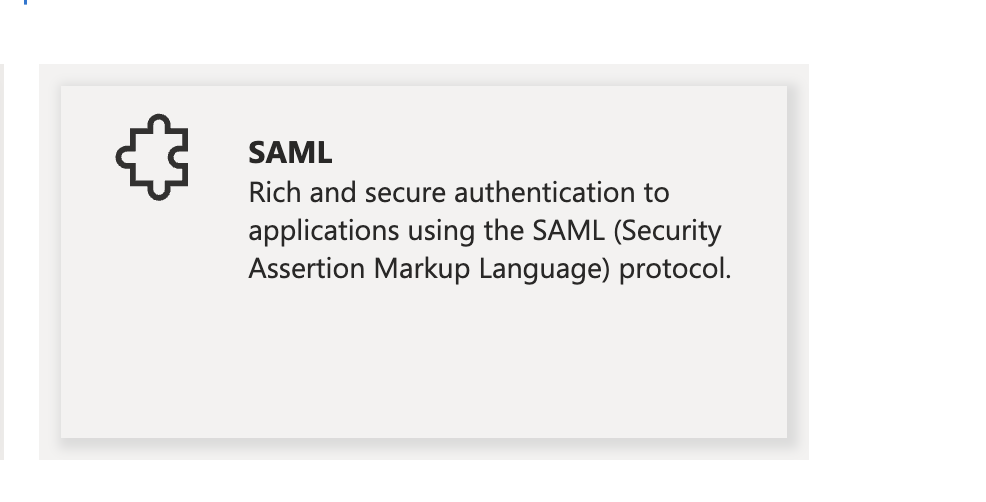
1. Under `Set up single sign on`, click on `SAML`.
\
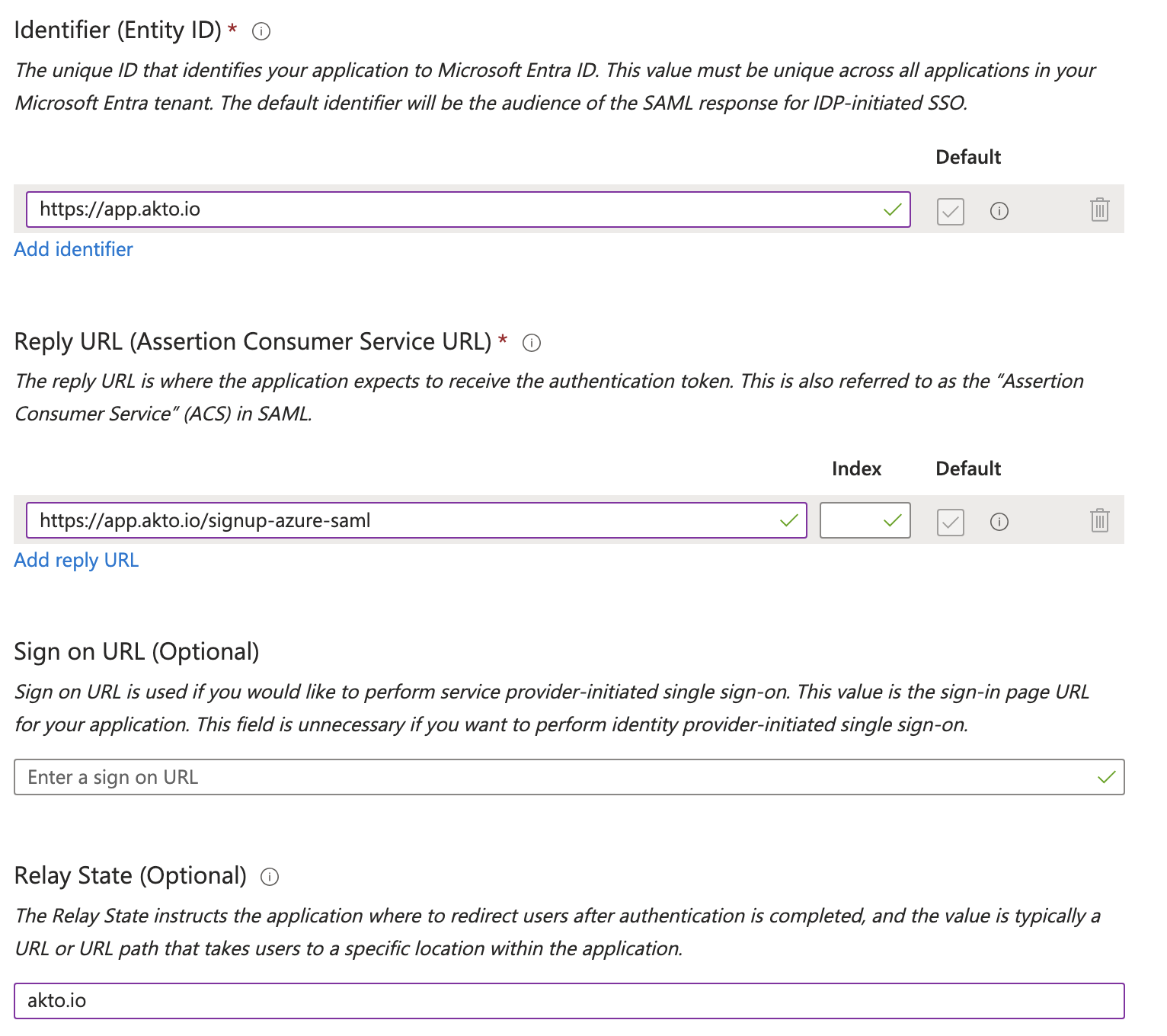
2\. \*\*Basic SAML Configuration\*\*
```
| Setting | Value |
| -------- | ---------------- |
| Identifier (Entity ID) | { hostname } |
| Reply URL (Assertion Consumer Service URL) | { hostname }/signup-azure-saml |
| Relay State | { Organization domain } |
```
\\
## Import Azure Federation Metadata into Akto Dashboard
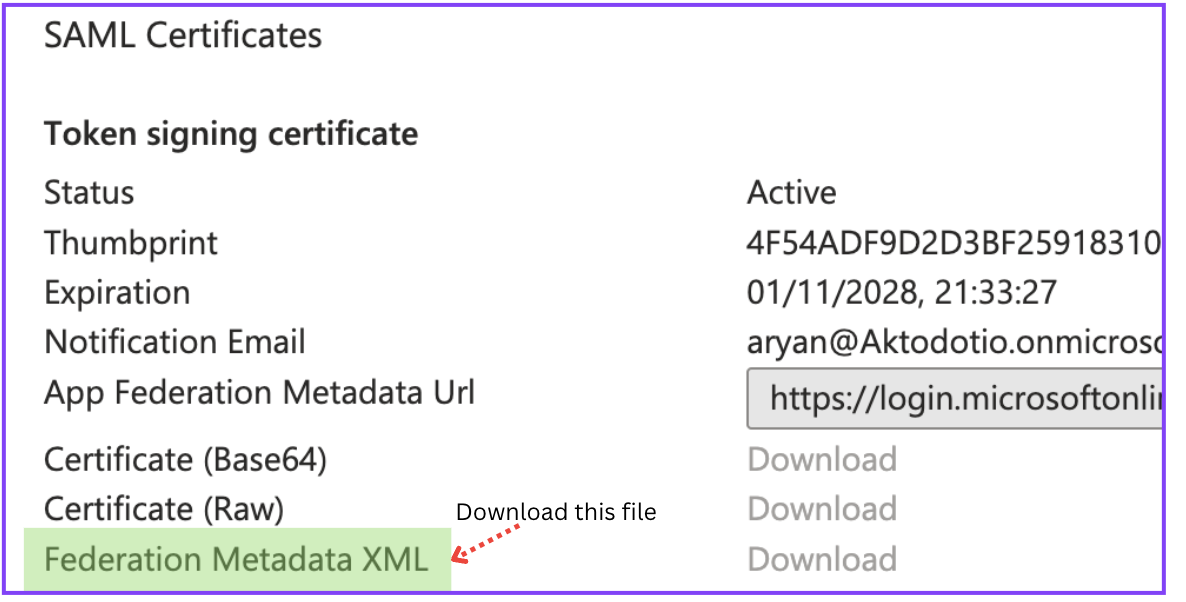
1. On the same page you configured SAML settings in the Azure Active Directory admin center, download the `Federation Metadata XML` file (listed under the SAML Signing Certificate).
\\
\\
2. Navigating in Akto dashboard.\
**Settings => Integrations => Azure SSO SAML**
3. Click on `Configure`, and then upload the metadata xml file.
\\
4. `Logout` to test the configuration by clicking "Sign in with Azure SSO".
## Get Support for your Akto setup
There are multiple ways to request support from Akto. We are 24X7 available on the following:
1. In-app `intercom` support. Message us with your query on intercom in Akto dashboard and someone will reply.
2. Join our [discord channel](https://www.akto.io/community) for community support.
3. Contact `help@akto.io` for email support.
4. Contact us [here](https://www.akto.io/contact-us).